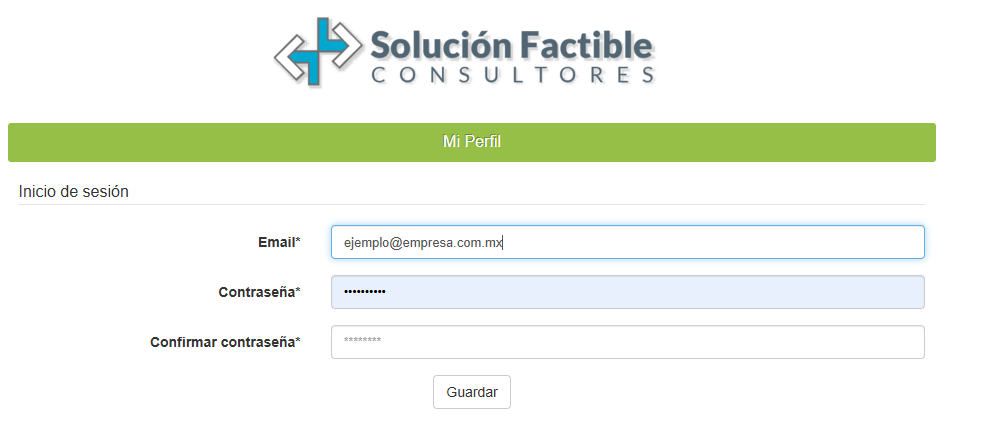
Invoice by logging in
If you previously registered your tax information in the system, then you will be able to log in.
This way, you can use the system and generate your electronic invoice without having to re-enter your tax information. If you haven't already done this, click here to register.
To complete the invoicing process, follow the steps below:
Step 1
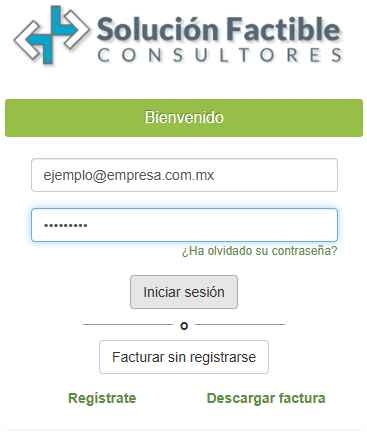
Enter your email address and password, then click the "Iniciar sesión" button.
Step 2
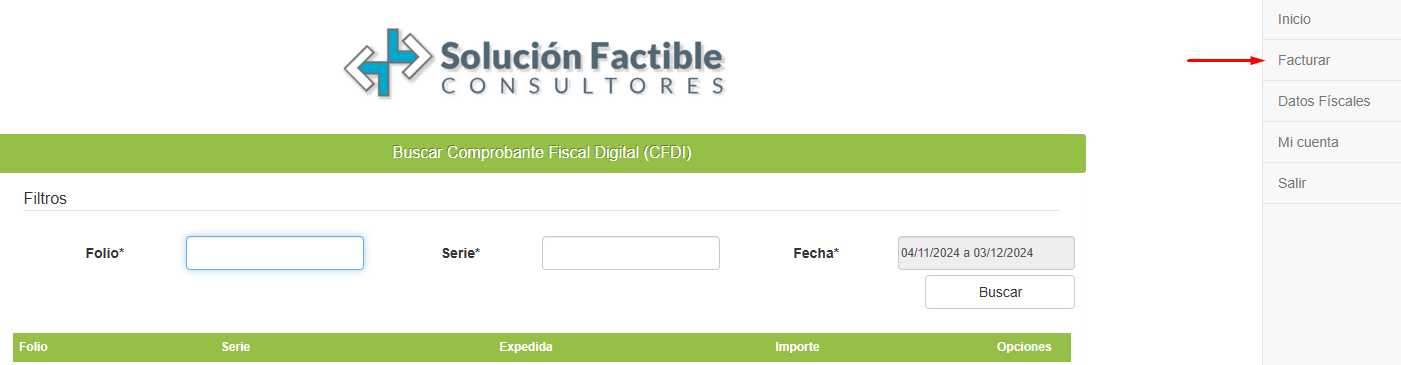
On the main screen, go to the "Generar Factura" option located in the left menu.
Step 3
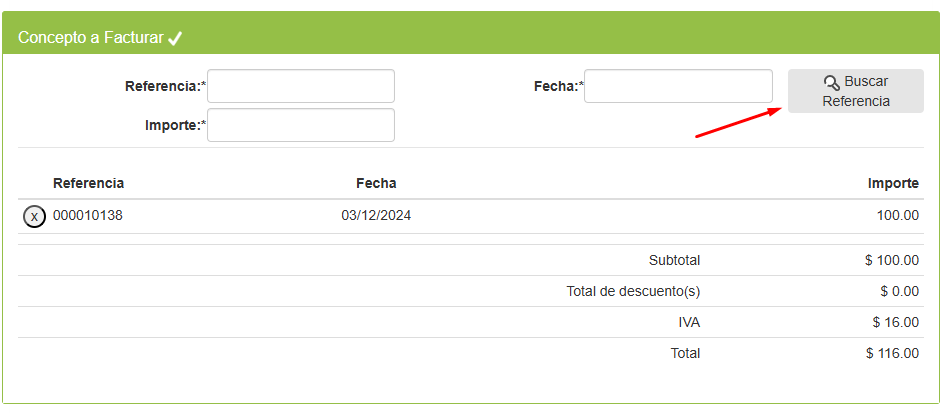
Please verify that your tax information is correct. If not, see the "Datos Fiscales" section. If your tax information is correct, you will need to enter the information from your e-document: CFDI usage/reference/date/amount. When finished, click the "Buscar Referencia" button.
It is important that you enter your e-document information correctly; otherwise, you will not be able to issue an invoice for that e-document.
Step 4
When you add an e-document, you'll see it displayed at the bottom of the screen, along with the total amount of the electronic invoice.
If you added more than one receipt, your invoice total will be the sum of all the amounts. To delete an added e-document, click the icon next to the reference number.
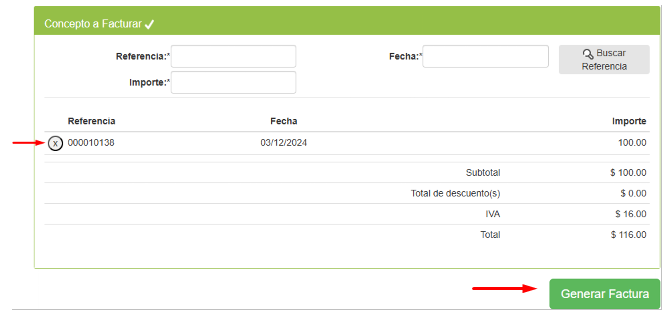
When you have finished adding the receipt(s) to be invoiced, click on the "Generar Factura" button.
Step 5
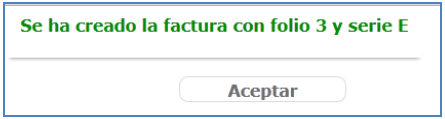
Our system works in coordination with the SAT (Mexican Tax Administration Service), so it is important that all the information you provide is truthful and that you make sure that the total of your invoice matches the total of the re-document they provided you. To ensure this, you must confirm the creation of the invoice by clicking on the "Aceptar" (Accept) button.

The system will confirm the creation of your invoice and will indicate its folio and series.
To download your XML and PDF, click on the icon  and save the file.
To send the XML and PDF by email, click on the icon  .
.
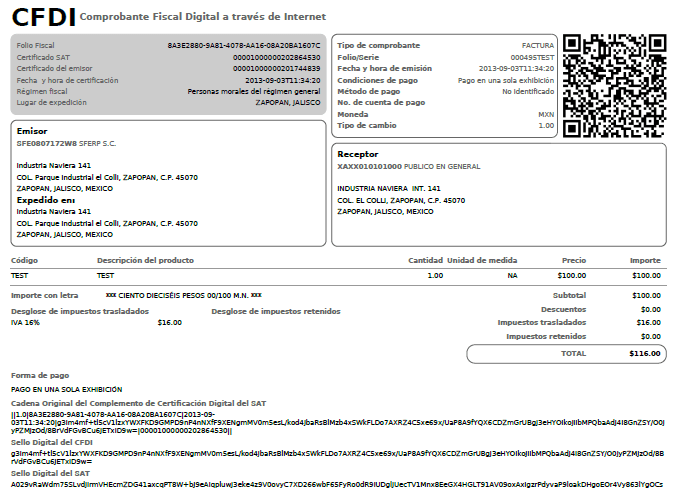
Example of a printed invoice (PDF)
Tax information
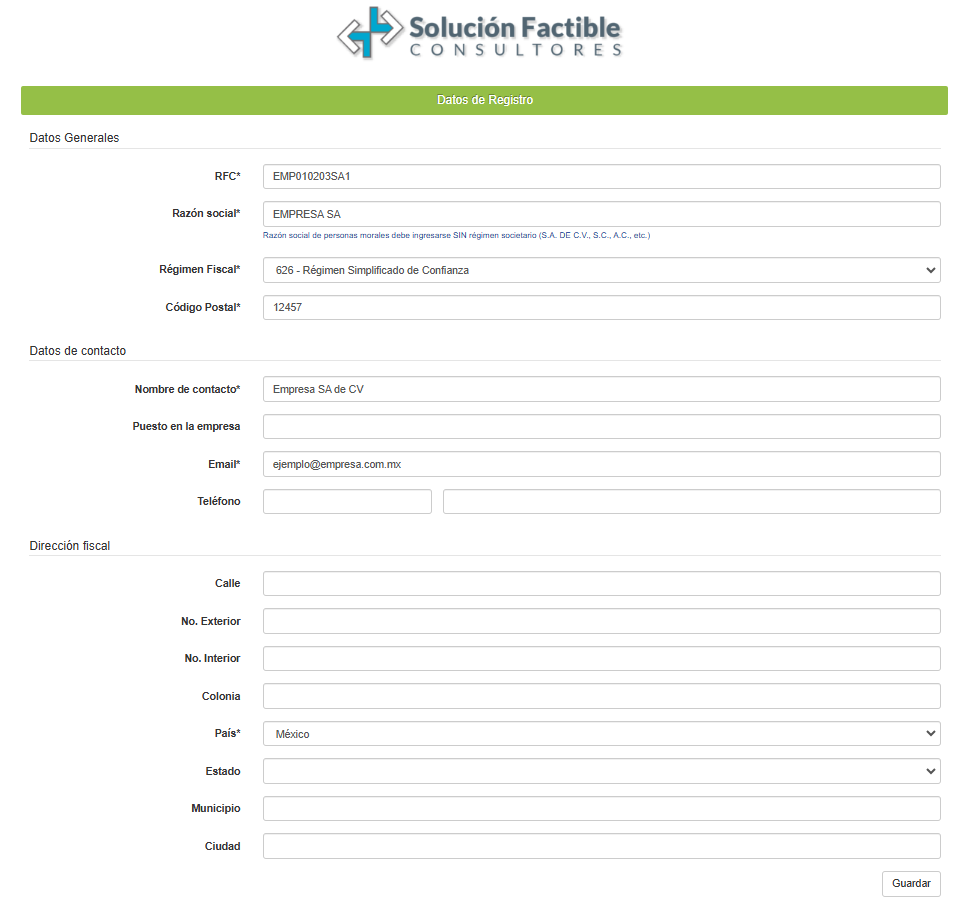
If the registered tax information is incorrect or has changed, you can edit it in this section.
To do this, go to the "Datos de Registro" option in the menu. When finished, click the "Guardar" button.
Login
In this section you can change your system access data; simply modify the information you require.